
Hyperglance's AI features help you get answers from your cloud data without building every query and chart by hand. You can:
- generate dashboards and widgets from a description,
- build searches and rules from a plain-language request, and have existing ones explained,
- add AI-written summaries to a dashboard, such as an executive summary of this month's spend,
- ask questions about cost, inventory and compliance from a Chat widget on any dashboard.
For AI that works on a schedule and proposes actions, see Agents.
Set up an AI provider first
All of these need an AI provider, which an administrator sets up in Settings › AI: Anthropic, OpenAI, any OpenAI-compatible endpoint, or Hyperglance's local model, which keeps your data inside your deployment. See Enabling AI features.
- Generating dashboards and widgets
- Building searches and rules
- Executive summaries with the Text widget
- Asking questions with the Chat widget
- What the AI can see
Generating dashboards and widgets
- A whole dashboard: when you create a dashboard, choose Generate with AI and describe what you want to see, for example "AWS EC2 costs by region for the past 30 days, broken down by instance type, with the top savings recommendations". Hyperglance picks the widgets and sets them up. Check the result, then change or add widgets as you would on any dashboard.
- Changes to a dashboard: while editing, Ask AI adds or changes widgets from a description.
- A single widget: in a widget's settings, Configure with AI sets it up from a description, such as "Show AWS EC2 costs by region for the past 30 days".
Building searches and rules
- Ask AI in Search builds a query from a request such as "EC2 instances with no Owner tag". Check the blocks it creates and run the search. To check for these resources regularly, or alert on them, save the search as a rule.
- Explain with AI describes the current query in plain words. It's useful for understanding a built-in rule before you change it.
- On the Rules page, a rule with no description of its own gets one written by AI, marked Described by AI.
Executive summaries with the Text widget
The Text widget shows your own notes, links and headings. It can also include sections that AI writes from your live data each time the dashboard is viewed, such as a summary for leadership at the top of a cost dashboard.
Edit the dashboard and add a Text widget, or edit an existing one.
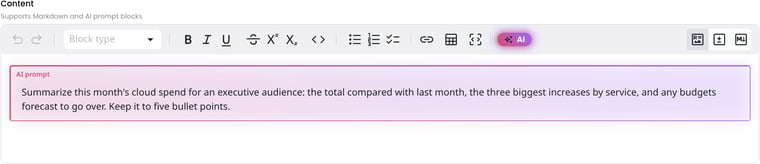
In the widget's settings, click AI in the editor toolbar to insert an AI prompt block.
In the block, write what you want, for example:
Summarize this month's cloud spend for an executive audience: the total compared with last month, the three biggest increases by service, and any budgets forecast to go over. Keep it to five bullet points.
Publish the dashboard.
When the dashboard opens, Hyperglance replaces each block with the AI's answer, written as a short report. Text outside the blocks is shown as you wrote it, so you can mix fixed headings and notes with generated sections.
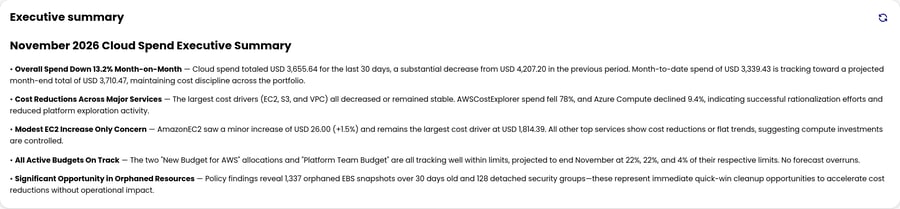
- Answers are reused for 30 minutes, so opening the dashboard again doesn't ask the AI every time. The refresh icon on the widget (Regenerate AI content) writes them afresh.
- A Text widget can hold up to 20 AI blocks, each up to 2,000 characters.
- The summaries are included when you export the dashboard to PDF or email it as a scheduled report, so a weekly report can arrive with its commentary already written.
Asking questions with the Chat widget
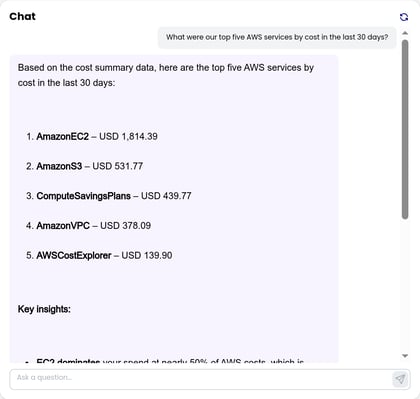
The Chat widget puts an AI assistant on a dashboard. Add it while editing the dashboard, then ask questions such as:
- "What were our top five AWS services by cost in the last 30 days?"
- "Which budgets are on track to go over this month?"
- "How many rules have open findings, and which are the worst?"
To answer, the assistant looks up costs by any dimension (account, region, service, tag and so on), budget status, rule findings and your inventory. It remembers the conversation while the dashboard is open, so you can ask follow-up questions. New conversation starts again. Conversations aren't saved.
To use Hyperglance's data from your own AI assistant instead, such as Claude Desktop, see Hyperglance MCP.
What the AI can see
- Only what you can see. AI features work with your own access: a user limited to some accounts gets answers, summaries and generated dashboards built from those accounts only. Cached answers are kept separately for each level of access.
- Where your data goes. To answer, Hyperglance sends the relevant data, such as cost totals, budget status or rule findings, to the AI provider set up in Settings › AI. To keep everything inside your deployment, use the local model.
- Who can use it. Every user can use the AI features once a provider is set up. Creating or changing dashboards still needs dashboard write access (see Who can see and change dashboards).