
As an administrator, you can change a user's password via the app or by using a CLI. Users can also change their own passwords via the UI.
Via the Hyperglance App
1. Log in to Hyperglance
2. Select the user icon in the top-right-hand corner, then Change Password
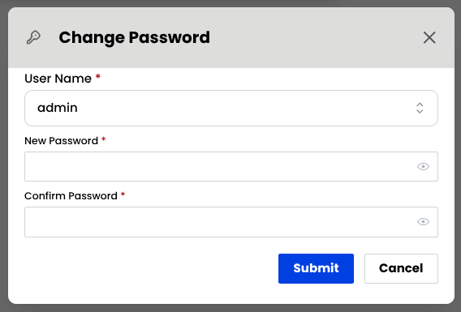
3. On the dialog that opens, choose the user whose password you want to change, then enter, and confirm, the new password:
Via the Hyperglance CLI
Note: This does not work with legacy Docker-based deployments.
1. Connect/SSH to the Hyperglance server
2. Run the following command with the appropriate username (e.g. admin):
hg users reset-password --username admin
3. When prompted, enter the new password. You'll be prompted twice - the password must match both times.
