
An exception tells a rule to leave a resource out of its results, notifications and automations, when you've decided it's fine as it is. For example, a test instance that's meant to be idle, or a bucket that's meant to be public. It no longer counts toward the rule's compliance score either.
Exceptions are part of good governance, so record why each one was made, and check from time to time that it's still needed. Hyperglance helps with both: each exception can have a note and a review date, and the Manage Exceptions page shows the ones that need attention.
Adding exceptions
- Open the rule, select its Query tab and click Modify to open it in Search.
- Select the resources to except in the results.
- Click Add to Exceptions.
- Add a note saying why, such as who agreed it and the ticket it was agreed in.
- Set a review date: the date someone should check that the exception is still needed.
- Save the rule.
Each exception records who created it and when, and who last changed it.
The exception workflow
- Record the reason. An exception without a note is hard to review later: nobody knows why it was made.
- Set a review date that suits the risk: soon for a security exception, later for a cost one.
- Review exceptions when they're due. On the Manage Exceptions page, show the exceptions that are overdue, or due in the next 7 or 30 days. For each one, either extend its review date and update the note, or delete the exception so the rule flags the resource again.
- Clean up exceptions for resources that no longer exist.
The Manage Exceptions page
Click Manage Exceptions on the Rules page to see every exception, across all rules.
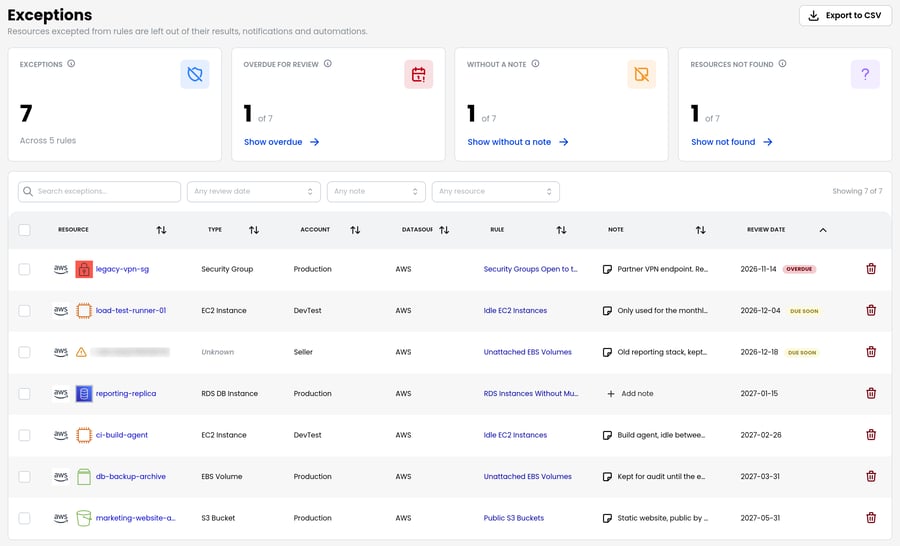
The cards at the top count:
- Exceptions: all of them.
- Overdue for review: exceptions whose review date has passed. Check they're still needed.
- Without a note: exceptions with no note recording why the resource was excepted.
- Resources not found: exceptions for resources Hyperglance can no longer find, usually because they've been deleted.
Click a card's button to show just those exceptions.
The list shows each exception's resource and its type, account and cloud, the rule, the note and the review date. Search it, or filter it by review date (Overdue, due in the next 7 or 30 days, later, or No review date), by whether it has a note, and by whether the resource can still be found.
- Edit a note or review date: click the exception's note to open it. You can also see who created and last changed it, and when.
- Delete exceptions: select one or more and delete them. Their rules flag those resources again from their next run.
- Export to CSV downloads the list, for example to review exceptions with their owners.
A rule's own exceptions are listed on its Exclusions tab, too.
Who can manage exceptions
Exceptions are part of the rule, so adding, changing or deleting them needs permission to edit rules: the HyperglanceRole_Rules role, which contributors and administrators also have (see Role-Based Access Control).