
A scheduled report emails a dashboard as a PDF attachment, weekly or monthly, to the people you choose. Hyperglance sends it through the email server set up in Settings › App Integrations (see Email/SMTP), and the email links back to the dashboard (see Setting the link-back URL for Hyperglance).
Creating a scheduled report
You need dashboard write access (the HyperglanceRole_DashboardWrite role, which contributors and administrators also have) and access to every account (HyperglanceRole_ViewAllTopo, which administrators always have). Reports are sent with every account's data, whoever creates them, so users limited to some accounts can't schedule them. You can only schedule dashboards you can see.
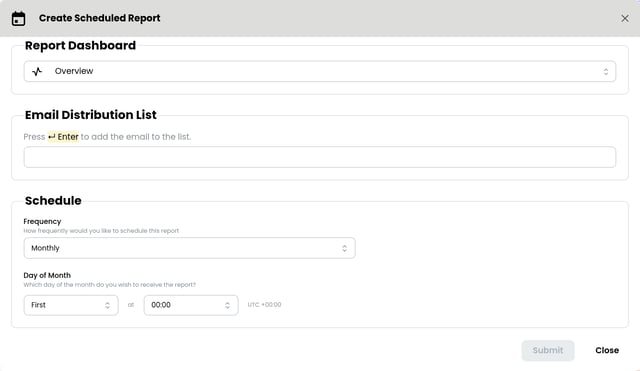
- On the dashboards page, click Create Scheduled Report.
- Under Report Dashboard, pick the dashboard.
- Under Email Distribution List, type each address and press Enter to add it.
- Under Schedule, choose Weekly (and the days) or Monthly (the first, last or a particular day of the month), and a time.
- Click Submit.
Managing scheduled reports
The Scheduled Reports tab on the dashboards page lists the reports, with their schedule, next delivery and recipients. Only users who can schedule reports see it, and reports on dashboards you can't see aren't listed. Edit a report from its row to change its dashboard, recipients or schedule, send it now, or delete it.
To email spend data rather than a dashboard, schedule the Billing Report instead.