
Hyperglance can raise a ServiceNow incident for each rule alert. It creates them by cloning an incident you choose as a template, and connects to your ServiceNow instance with OAuth 2.0 client credentials. You'll need the admin role in ServiceNow for the first two parts.
- Allow OAuth client credentials in ServiceNow
- Register Hyperglance as an OAuth client
- Create an incident template
- Connect Hyperglance to ServiceNow
Allow OAuth client credentials in ServiceNow
ServiceNow only accepts the OAuth client credentials grant once a system property switches it on.
In the ServiceNow navigation filter (under All), type
sys_properties.listand press Enter: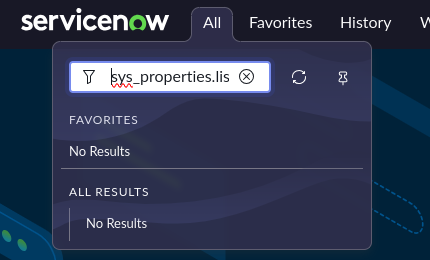
Note
If the list doesn't open, make sure you're in the main ServiceNow platform UI (not the Service Portal) and that your user has the admin role.
Click New (top right) and fill in the property:
- Name:
glide.oauth.inbound.client.credential.grant_type.enabled - Type: true | false
- Value:
true - Description: any text, e.g. "Allow OAuth client credentials"
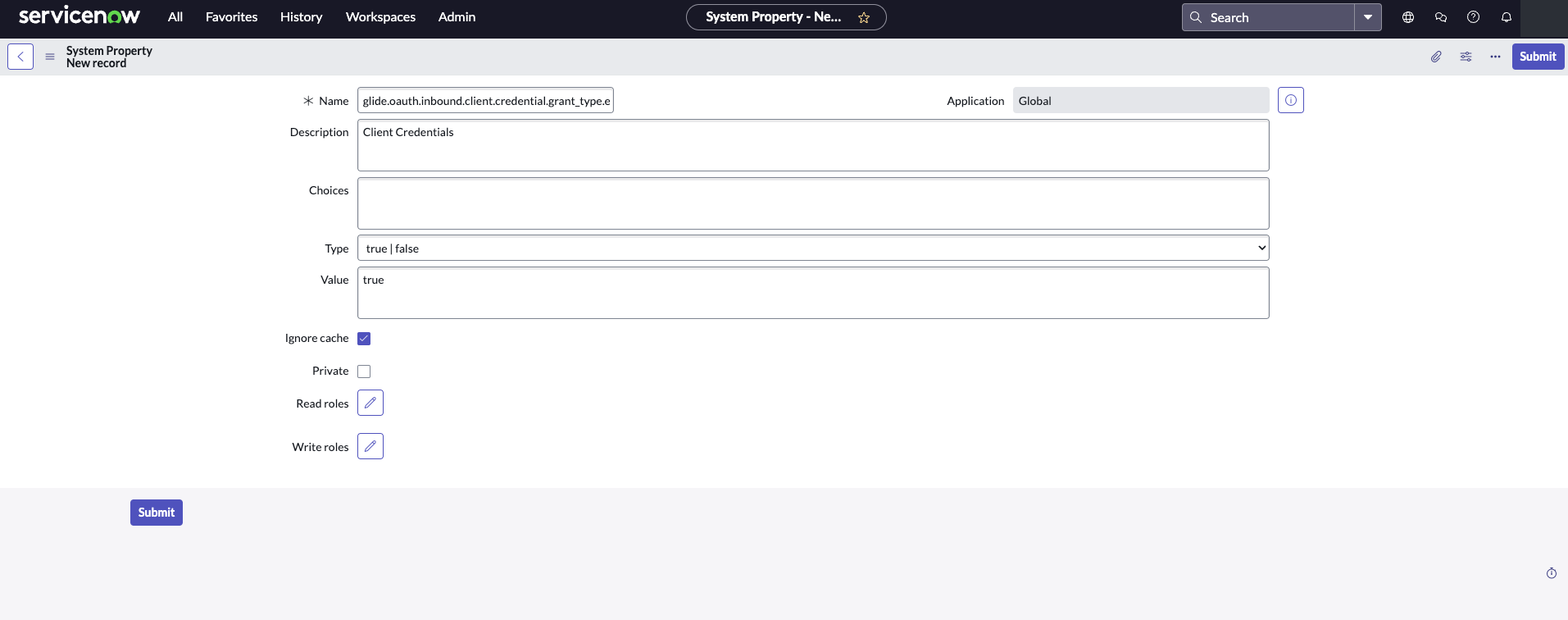
If the property already exists, just make sure its value is
true.- Name:
Click Submit.
Register Hyperglance as an OAuth client
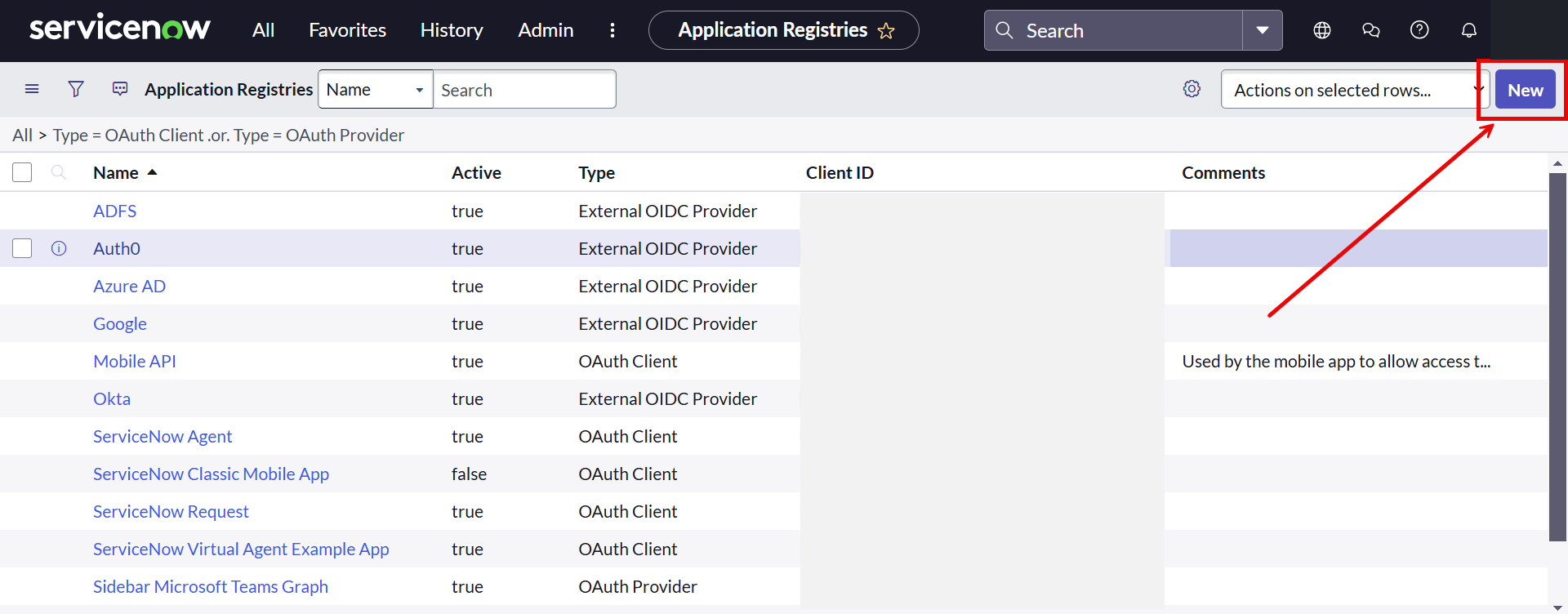
Go to All > System OAuth > Application Registry and click New:
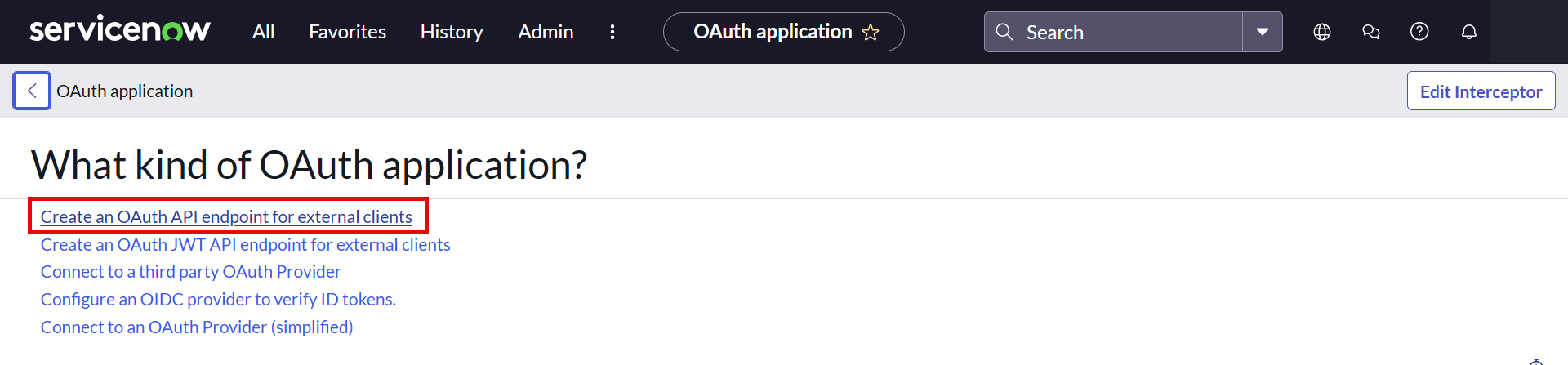
Choose Create an OAuth API endpoint for external clients:
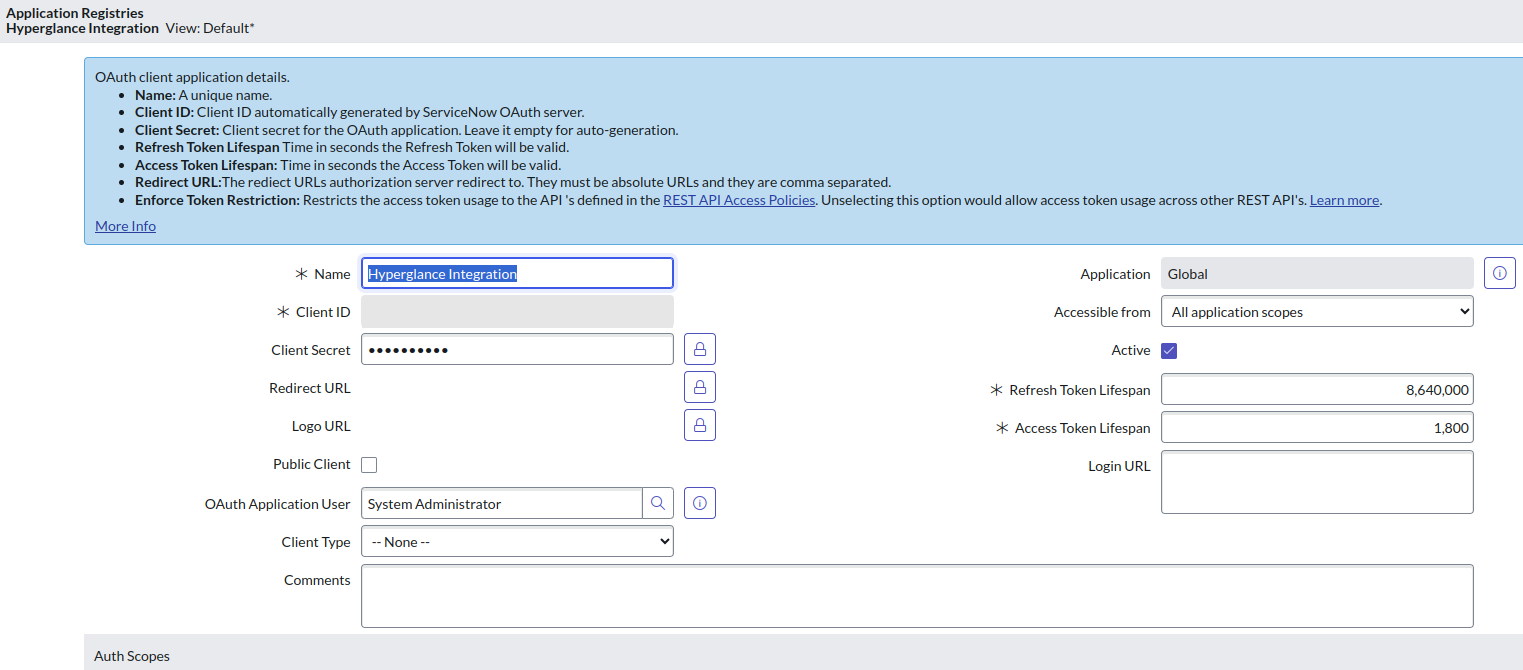
Fill in the form:
- Name: a name you'll recognize, e.g.
Hyperglance - Client ID and Client Secret: leave these; ServiceNow generates them
- Active: checked
- Redirect URL: not needed
- Name: a name you'll recognize, e.g.
Set the OAuth Application User: the ServiceNow user Hyperglance acts as when it reads your template incident and creates incidents.
Tip
Use a dedicated integration user rather than an administrator. Hyperglance only reads your template incident and creates new incidents, so the user needs only the roles to read and create incidents, e.g.
itil. If your instance restricts REST API access, also give it thesnc_platform_rest_api_accessrole. ServiceNow records this user against every incident Hyperglance creates.If the OAuth Application User field isn't on the form, add it:
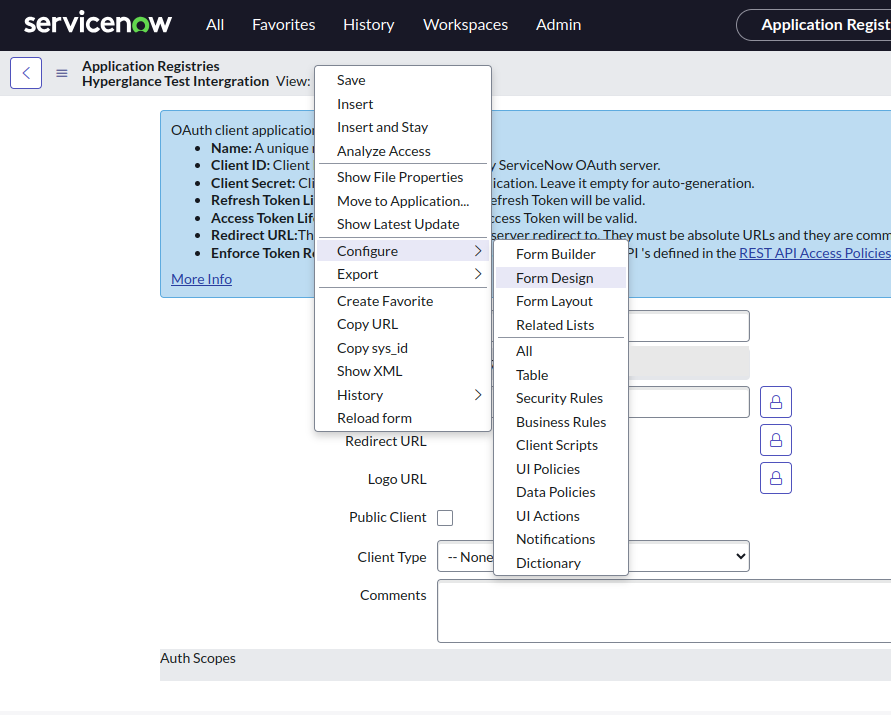
Right-click the form header (Application Registries) and choose Configure > Form Design:
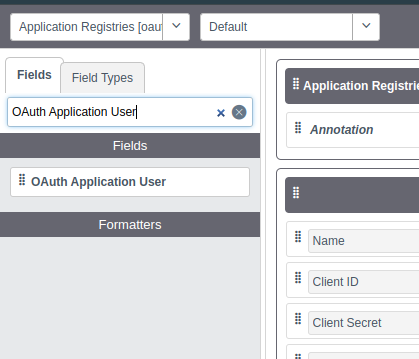
Search the fields for OAuth Application User and drag it onto the form:
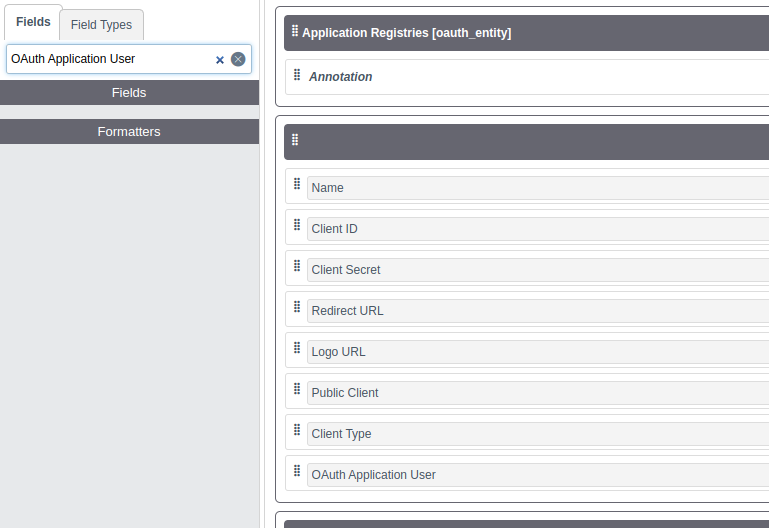
Save the form design and go back to your application registry record.
Click Save, then note the Client ID and Client Secret. You'll enter them in Hyperglance, so keep them somewhere safe.
Create an incident template
In ServiceNow, type
incidentinto the navigation filter, choose Incident under Service Desk, and click New.Fill in the fields you want every Hyperglance incident to have. Hyperglance copies these fields from the template: Caller, Category, Subcategory, Service, Impact, Urgency, Priority, Severity, State, Assignment group and Assigned to. Other fields aren't copied. Hyperglance writes its own Short description and Description, so anything you put there is replaced.
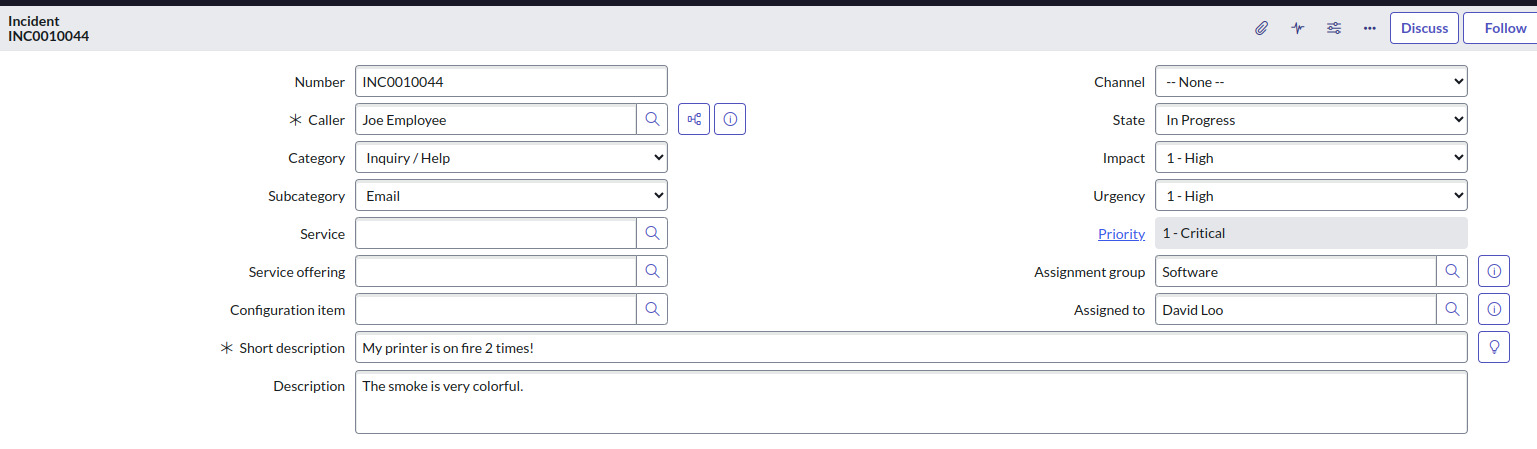
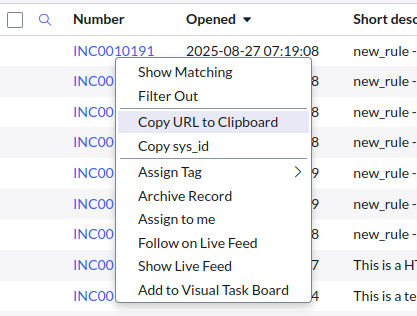
Save the incident, then copy its URL: in the incident list, right-click its number and choose Copy URL to Clipboard.
Connect Hyperglance to ServiceNow
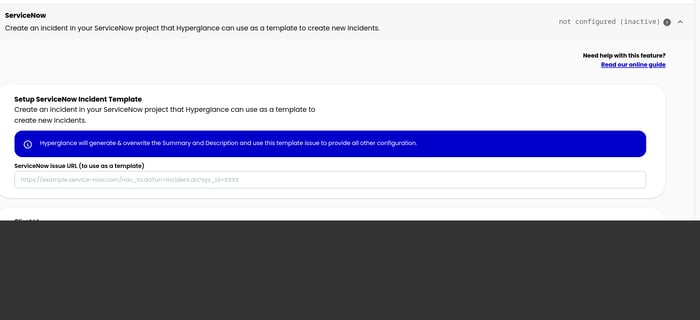
In Settings › App Integrations, expand ServiceNow.
Paste your incident's URL into ServiceNow issue URL (to use as a template). It looks like
https://<your-instance>.service-now.com/nav_to.do?uri=incident.do?sys_id=….Enter the Client Id and Client Secret of your OAuth application.
Click Save.
Tip
Hyperglance reads the template incident every time it creates an incident, so changes you make to the template (e.g. its assignee or category) apply straight away. Don't delete the template incident: Hyperglance can't create incidents without it.
Then choose ServiceNow when you set up a rule's alerts. For the other channels, see Configuring notifications.