
Settings › System has the tools for keeping Hyperglance healthy and troubleshooting problems. Only administrators can open Settings.
Logs
Logs shows Hyperglance's server log as it's written. Type in Filter logs (regex) to show only matching lines, and pause the stream to read it.

Download All Logs (Zip) downloads every log file. Hyperglance support may ask you for it. Administrators can also open this page from Help & Support › Server Logs in the navigation bar.
From the Hyperglance VM's terminal (see Terminal access for Hyperglance), the hg CLI can show the logs with sudo hg logs, and sudo hg validate checks the deployment and creates a support bundle.
Memory Usage
Hyperglance keeps inventory and billing data in memory, so memory is usually what limits how big a deployment can get. Memory Usage shows how much of its memory (heap) is in use, and a histogram of what's using it. Download Memory Usage saves it for support.
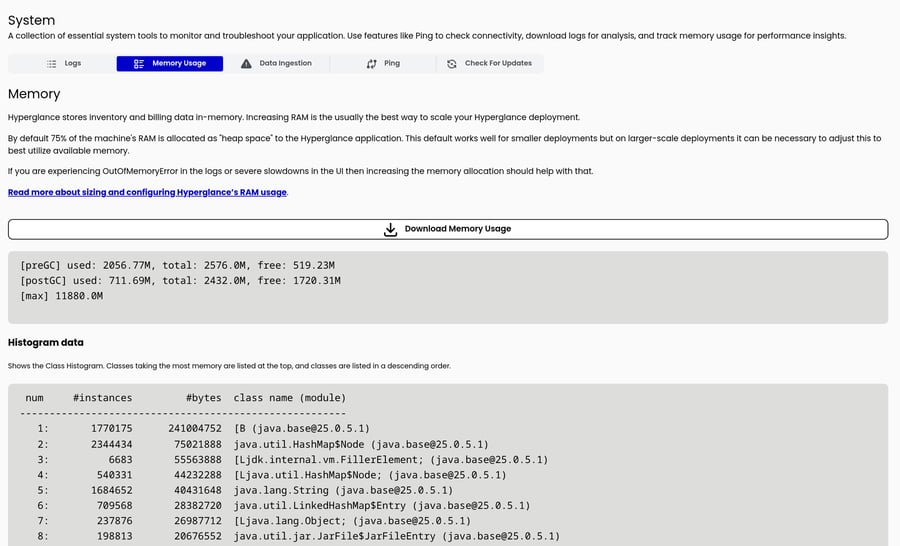
If the logs show OutOfMemoryError, or the app slows down badly, give Hyperglance more memory. See Adjusting Hyperglance's memory allocation.
Data Ingestion
The Data Ingestion Report lists the problems Hyperglance had collecting data from your clouds:
- Connectivity Errors: Hyperglance couldn't reach a cloud API, because of the network, a proxy or firewall, or an outage at the provider.
- Missing Metadata: some attributes of some resources couldn't be read, usually for lack of permission. Security and compliance rules that check those attributes may be wrong until it's fixed.
- Missing Resources: some kinds of resource couldn't be collected at all, usually for lack of permission.
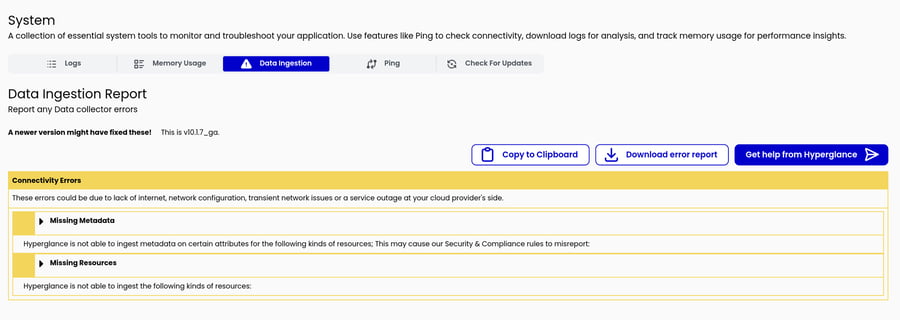
Missing permissions are fixed in the cloud account: see the permission requirements for AWS, Azure or GCP. Copy to Clipboard, Download error report and Get help from Hyperglance help you send the report to support. A newer version of Hyperglance may have fixed some errors.
The Platforms page also shows each connection's health, and Download Discovery Report in its More options menu lists what was collected from each.
Ping
Ping checks whether Hyperglance can reach a URL, and how long it takes to respond. Use it to check a firewall or proxy, for example by pinging a cloud provider's API endpoint or your mail server.
Check For Updates
Check For Updates shows whether a newer version of Hyperglance is available, and which version you're running. Click Check Now to check again. Checking needs network access to Hyperglance's update servers.
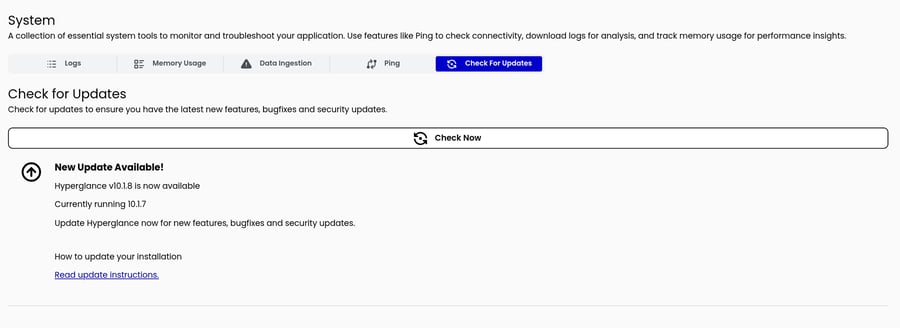
To update, see Updating Hyperglance.