
Beta
Agents are in beta. Tell us what you think through support.
Agents are AI agents that look over your cloud on a schedule and report what they find: a weekly summary of cost anomalies, a daily check on budgets heading over, a review of untagged resources. They can attach a dashboard or a resource search to their findings, send them by email, Slack, Microsoft Teams, Jira or ServiceNow, and propose fixes for someone to approve.
Agents use the AI provider set up in Settings › AI, with the AI Agents feature turned on (see Enabling AI features). For Hyperglance's other AI features, such as generated dashboards and the Chat widget, see Using AI in Hyperglance.
The page has three tabs: Agents, Teams and Action Inbox.
Agents
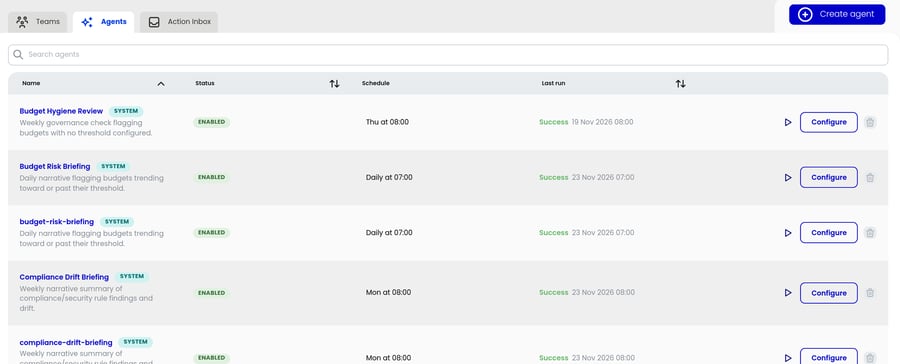
The Agents tab lists every agent with its schedule and last run. Hyperglance comes with a set of system agents, such as:
| Agent | What it does |
|---|---|
| Cost Anomaly Digest | Weekly: the biggest week-over-week cost changes by service, account and region. |
| Cost Wastage Briefing | Weekly: what the cost rules found, and how it's changed. |
| Top Cost Driver Spotlight | Weekly: a resource-level look at your single biggest cost driver. |
| Budget Risk Briefing | Daily: budgets heading toward, or past, their threshold. |
| Budget Hygiene Review | Weekly: budgets with no alert threshold. |
| Compliance Drift Briefing | Weekly: what the compliance and security rules found, and how it's changed. |
| Untagged Resource Advisor | Weekly: tagging coverage, proposing a tag-writing automation when it's poor. |
Click Configure to change an agent, or Create agent to write your own. An agent has:
- A Prompt describing what to analyze (and, for your own agents, a Persona for its voice).
- What it should produce: a Dashboard or Resource query attached to the run, Propose automations for someone to approve, and Manual actions (follow-ups for a person, in the Action Inbox).
- Notifications: where it reports. Leave a channel's recipient blank to use the one set in Settings › App Integrations.
- A Schedule (the days and time it runs), and Memory, which keeps key figures between runs so it can report changes ("cost up $500").
For system agents, you can change the schedule, notifications, outputs and automations, and turn them off.
Teams
An agentic team is a group of agents that watches part of your cloud for the people responsible for it. Each agent runs once for the team, with the team's instructions and scope.
To create one, click New Agentic Team, or start from a template: Cost Optimisation, Governance or Tagging.
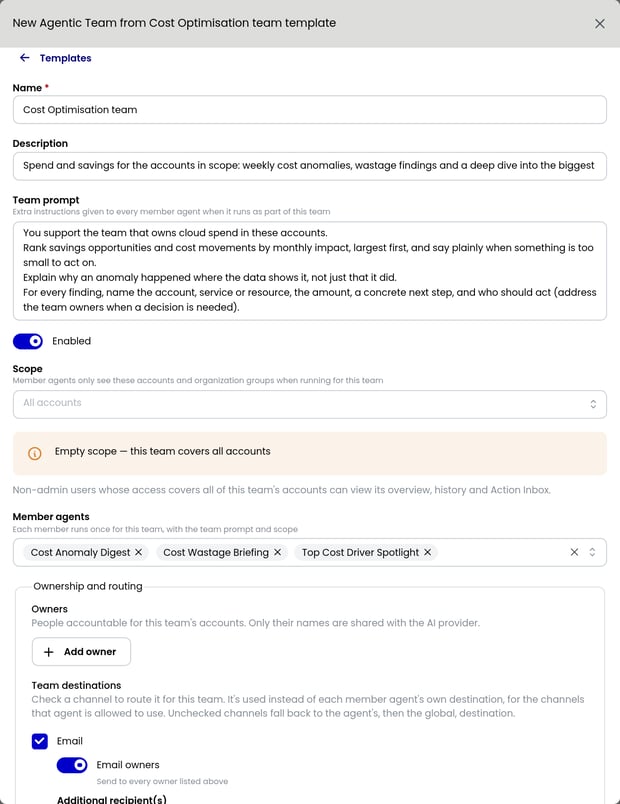
- Team prompt: instructions given to every agent in the team, for example how to rank findings and who to address.
- Scope: the accounts and organization groups the team covers. Leave it empty for all accounts.
- Member agents: the agents that run for the team.
- Owners: the people accountable for the team's accounts. Only their names are shared with the AI provider.
- Team destinations: where the team's findings go, instead of each agent's own. Email owners sends them to the owners.
Action Inbox
When an agent proposes an automation, or flags something a person needs to do, it lands in the Action Inbox. Each item shows what's proposed, why, and the agent that proposed it.
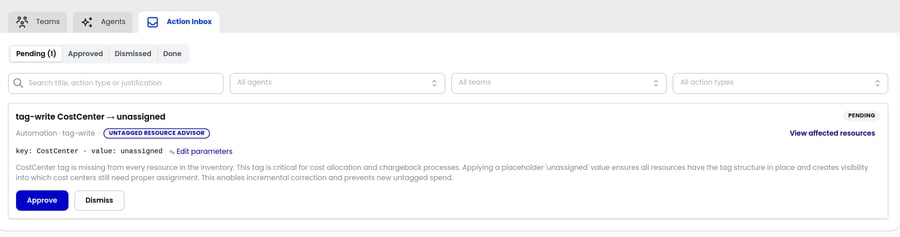
- View affected resources lists the resources it would change. Edit parameters changes what it would do (for example, the tag value).
- Approve runs it. Dismiss declines it.
- Filter by status (Pending, Approved, Dismissed, Done), agent, team or action type, or search.
Approved automations appear in the Automation Log. Automations need setting up first: see How do Hyperglance Automations work?
Who can see and manage agents
- Creating, editing, running and deleting agents and teams needs an administrator.
- Seeing a team: users who aren't administrators can see a team's overview, history and Action Inbox if their access covers all of the team's accounts (see Role-Based Access Control).
- Approving or dismissing items in the Action Inbox needs the same permission as running automations: the
HyperglanceRole_Actionsrole, which contributors and administrators also have.