
Hyperglance reads your Google Cloud costs from your billing account's export to BigQuery. They power Cost Explorer, budgets, wastage savings and Committed Use Discount recommendations.
Tip
One billing export covers every project linked to the billing account, so one cost source is usually enough.
Export your billing data to BigQuery
Set up Cloud Billing export to BigQuery for your billing account, if you haven't already. Note the project, dataset and table it writes to. Make sure the BigQuery API is enabled in that project.
Give a service account read access
Hyperglance reads the export as a service account. In the project that holds the export, grant it:
- BigQuery Data Viewer
- BigQuery Job User
You can use the same service account you connected your projects with, or a separate one. To create one, go to IAM & Admin › Service Accounts in the Google Cloud console, and download a JSON key for it.
Start the GCP BigQuery wizard
Go to Settings › Platforms, click Connect Platform and, under Add a Cost Source, choose GCP BigQuery. If you've just connected a project, click Connect a cost source on the confirmation instead.
Enter the export's location
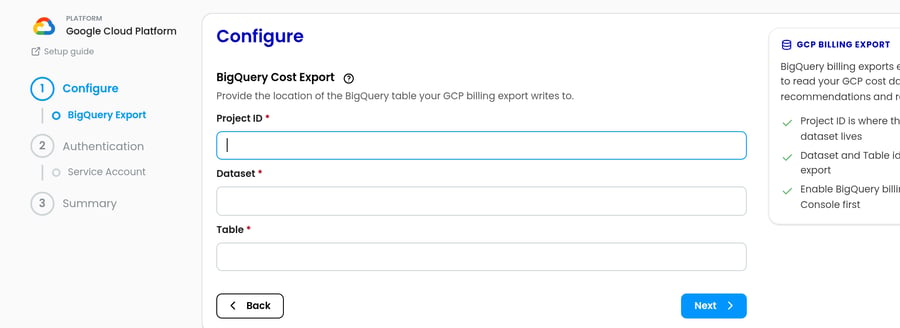
Enter the Project ID where the billing export's dataset is, then the export's Dataset and Table.
Add the service account
Choose New service account and upload or paste its JSON key, or choose Existing credentials to reuse one you've already added.
Finish
Check the Summary and finish. The cost source appears under Cost Sources on the Platforms page, and cost data appears after the billing export next updates.